

Documentation
Getting started with PipeEnrich
From install to a fully enriched organisation in a few minutes. Below you will find everything, step by step.
Getting started
PipeEnrich runs as a panel inside Pipedrive. As soon as you open an organisation or deal, the panel loads the matching KvK data automatically. You do not need a KvK API key of your own: we handle that.
1 · Installing
- Click Request beta access and log in to your Pipedrive account.
- Grant the requested permissions (read/write of organisations). This is needed to sync data.
- You are returned to Pipedrive. The app now appears as a panel on your organisations and deals.
New installs start automatically on the Free tier with 25 free lookups per month.
2 · Set the KvK number field
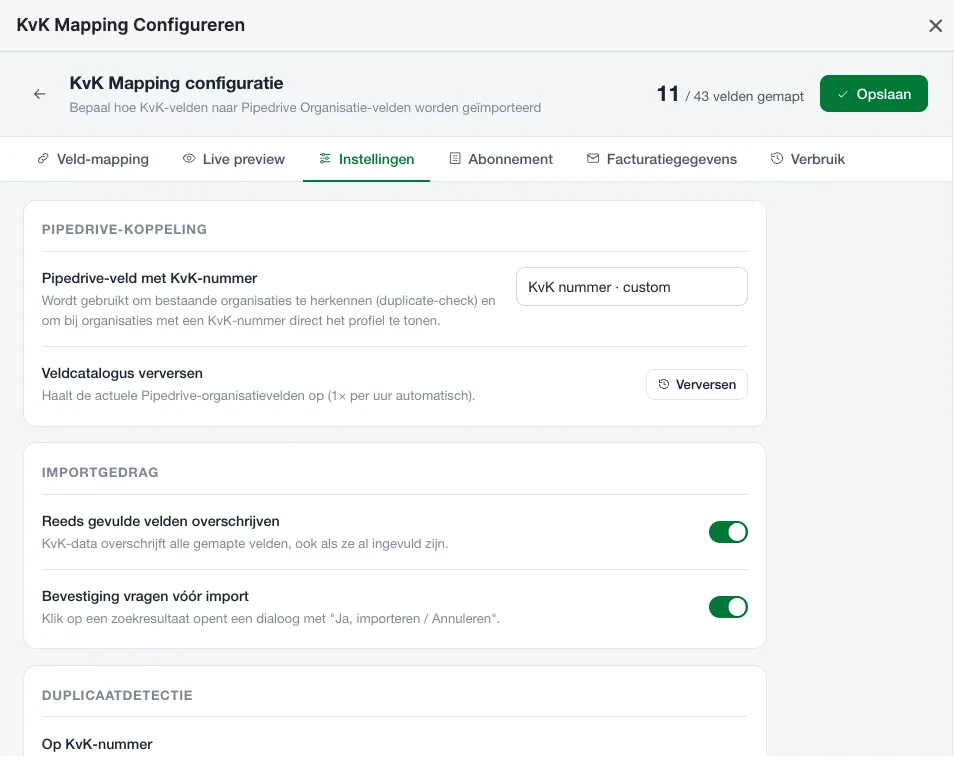
The integration needs to know which Pipedrive organisation field holds the KvK number. Go to the app settings and select that field. Not there yet? You can also have it fetched through a name search.
3 · Field mapping
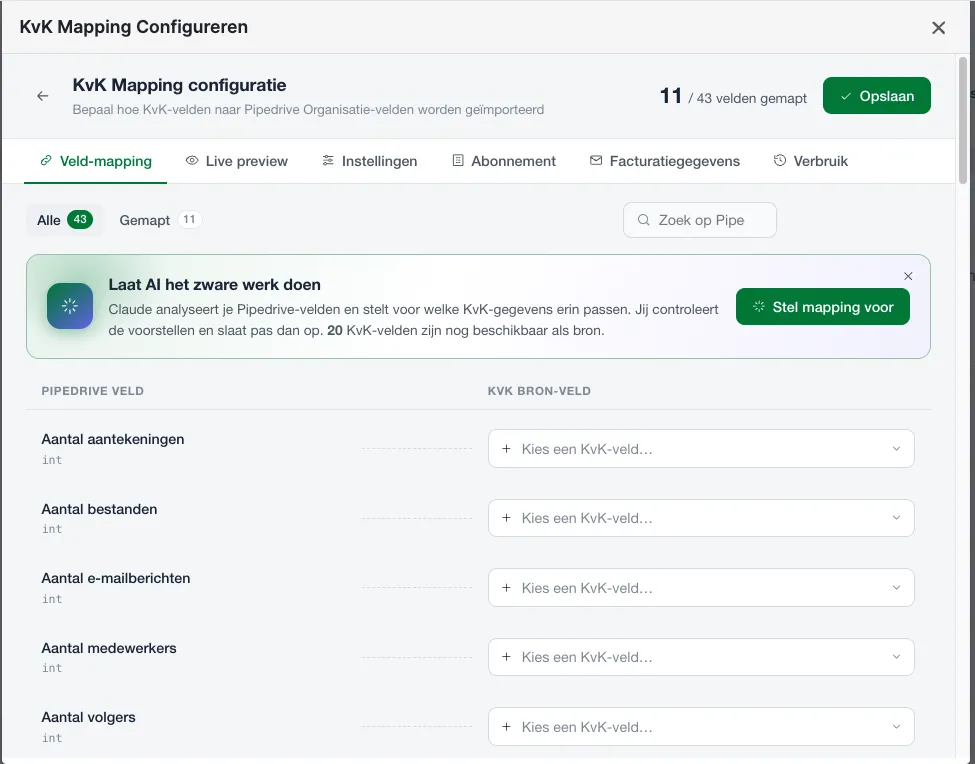
Decide which KvK field is written to which Pipedrive organisation field. You keep full control:
- Only fields you map explicitly are written.
- Unmapped fields in Pipedrive are left untouched.
- For each KvK field you see a live preview of what will be imported.
Available KvK fields include: visiting and postal address (full or split into street, house number, postcode and city), legal form, statutory name, RSIN, SBI activities (primary code or all activities), branch number, registration date, website and number of employees.
Per mapping you can choose a transformation applied to the value before it is written:
- None: the value exactly as the KvK returns it.
- Uppercase, lowercase or Title case: for consistent spelling in your CRM.
- Trim spaces: removes excess spaces.
- Phone to +31: converts a number to international E.164 notation.
4 · Import settings
Besides the mapping, you decide per account how the integration behaves when writing. You find these options under Settings in the panel:
- Overwrite filled fields: on by default. Turn this off and the integration fills only empty Pipedrive fields and leaves existing values alone.
- Confirm beforehand: on by default. You first see an overview of what will be written and confirm yourself, so data is never changed unseen.
- Log enrichment as activity: on by default. Every sync is recorded as a Pipedrive activity, so the log shows what was updated. You choose which activity type is used.
5 · Enrich & sync
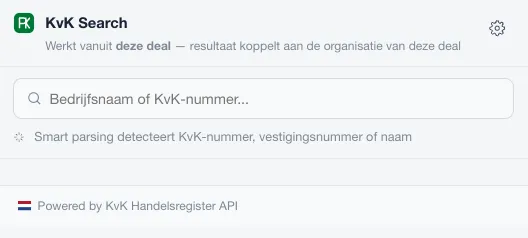
Open an organisation (or a deal linked to an organisation). The panel shows the live KvK data. Click Sync and all active mappings are written to the organisation.
No KvK number on the organisation yet? Search in the panel by company name or number. The smart parsing automatically recognises whether you typed a KvK number, a branch number or a name, so you never have to specify what you are searching by.
6 · Bulk import
Have many organisations at once? Select them in a Pipedrive list and start a bulk enrichment. The integration runs a preflight (which records have a KvK number, which do not) and then processes the list with clear status feedback per record.
7 · Dedupe
To prevent duplicate organisations, the integration matches before creating on:
- KvK number: always on, the strongest and exact match.
- Company name: optional to add. Handy when an organisation has no KvK number yet.
If you turn on the name match, you choose how strict it is:
- Exact: a full match, case-insensitive. The lowest chance of false hits.
- Fuzzy: also catches variants with or without a legal-form suffix, extra spaces and spellings.
8 · Credits & cache
One credit equals one new fetch of a KvK base profile. Important to keep costs low:
- Repeated lookups of the same profile come from the cache/archive and are free.
- Your credits reset per calendar month, per seat.
- On Free that is 25, Starter 50, Professional 200, Business 750 per seat per month.
- On Professional and Business you can buy separate credit packs.
9 · Invoicing
You can pay with iDEAL and, for subscriptions, automatic direct debit (SEPA) via Mollie. After each successful payment you automatically receive an invoice at the administrative email address you provide.
- You fill in your billing details once before the first payment.
- A company-name lookup fills your KvK details into the billing fields automatically.
- All prices are excl. 21% VAT; the VAT amount is shown separately on the invoice.
- Upgrading is settled immediately (proration); we schedule a downgrade at your renewal.
10 · Security & privacy
- Every request from the panel is verified through the Pipedrive iframe JWT. Routes are shielded by default (deny-by-default).
- All data is strictly separated per Pipedrive company (multi-tenant); there is never cross-company reading.
- Data comes from the official KvK API and is used only to enrich your Pipedrive.
Support
Questions or need help? Email us at info@cybermatic.nl. We are happy to help with onboarding and mapping.